READ ME
Dashtube.ai
A lightweight chat interface for OpenRouter AI models. Manage up to 10 concurrent chat threads, load custom prompts, and integrate JSON data seamlessly.
Getting Started
How to Get an API Key from OpenRouter
- Visit OpenRouter.ai
- Sign up or log in to your account
- Add credits to your account (OpenRouter requires a balance to make API calls)
- Navigate to your Dashboard or API Keys section
- Click Create API Key
- Give your key a name (e.g., "Dashtube.ai")
- Copy your new API key (it will look something like
sk-or-v1-...) - Keep this key safe! You'll need it to use Dashtube.ai

Setting Your API Key
- Open Dashtube.ai in your browser
- Click the Add API Key button (located beneath the chat area between "Send" and "Add JSON" buttons)
- Paste your OpenRouter API key into the prompt
- Click OK or press Enter
Your API key is saved locally in your browser and will persist between sessions. The button will change to Clear API Key once a key is set.
IMPORTANT: If your laptop is ever lost or stolen, IMMEDIATELY go to openrouter.ai and revoke your API key. You should also consider setting a spend limit as an extra layer of protection.
Starting a Thread
Dashtube.ai gives you 10 chat slots so you can run multiple conversations at once.
To start a new thread:
- Look at the left panel with numbered slots (1–10)
- Click any slot that says "Empty..."
- A prompt will appear asking you to name your chat
- Type a name and click OK
- The slot will now show your chat name
To switch between threads:
- Click any chat slot to switch to that conversation
- The active chat name appears at the top of the screen
To manage a thread:
- Right-click on any chat slot to open the context menu
- Choose from:
- Rename – Change the chat name
- Export Chat – Download the conversation as JSON
- Clear Chat – Delete all messages (keeps prompt, model, and JSON)
Setting and Saving a Prompt
The right panel is your prompt area. This is where you load a system prompt that tells the AI how to behave.
To load a prompt:
- Click the View Prompt button in the top-right corner to open the prompt panel
- Click the Add Prompt button in the bottom-right corner
- Select a
.md(Markdown) file from your computer - The file contents will appear in the prompt text area
To edit the prompt:
- Click inside the prompt text area and type directly
- Changes save automatically
- This prompt applies to the currently active chat
Why use prompts?
Prompts give the AI personality, instructions, or context. For example:
- "You are a helpful coding assistant."
- "Answer all questions in pirate speak."
- "You are an expert in JavaScript debugging."
PLEASE NOTE: Prompt applies only to the current chat. You will need to re-upload or copy paste your prompt when starting another chat.
Adding a JSON File
Dashtube.ai lets you attach JSON files to your messages. This is useful for feeding data into the AI or working with structured information.
To add a JSON file:
- Click the Add JSON button (located in the input footer)
- Select a
.jsonfile from your computer - The filename will appear where it said "No file loaded"
- The button will change to Remove JSON
- Type your message in the text area
- Click Send
What happens:
- The JSON file contents are included with your message
- The AI can read and work with the data
- The file stays loaded until you remove it or switch chats
To remove a JSON file:
- Click the Remove JSON button and confirm removal
Managing Your Messages
You can edit, regenerate, or delete any of your previous messages using the right-click context menu.
To access message options:
- Right-click on any of your messages (user bubbles in the chat)
- Choose from:
- Regenerate – Deletes this message and everything after it, then resends the message
- Delete – Deletes this message and everything after it permanently
- Edit – Deletes this message and everything after, and places the text in the input field for editing
Warning: All three options will delete the selected message and ALL messages that came after it. This cannot be undone!
Why use this?
- Fix typos in past messages
- Try different phrasings to get better responses
- Remove unwanted conversation branches
- Start fresh from any point in the conversation
Exporting Thread Data
You can export any chat thread as a JSON file to save your conversation history.
To export a thread:
- Right-click on the chat slot you want to export
- Select Export Chat from the context menu
- A JSON file will download to your computer
What's in the export?
The JSON file contains:
- Chat name
- Selected model
- Full conversation history (all messages and responses)
- Timestamp of export
Why export?
- Backup important conversations
- Share conversations with others
- Analyze chat data programmatically
- Import into other tools
Additional Features
Model Selection
Choose from multiple AI models using the dropdown at the top (next to the chat name):
- DeepSeek models (with extended reasoning)
- Qwen models
- Inclusion AI models (Ling and Ring)
- Moonshot AI models
- + Add Model to add custom models by pasting model IDs from OpenRouter
Reasoning Display:
Models that support reasoning (like DeepSeek) will show their thinking process in a separate section above the main response.
Markdown Formatting:
All AI responses support markdown formatting including bold, italic, code blocks, lists, and more. The formatting is rendered automatically in both responses and reasoning traces.
To add a custom model:
- Visit OpenRouter.ai/models
- Browse or search for the model you want to use
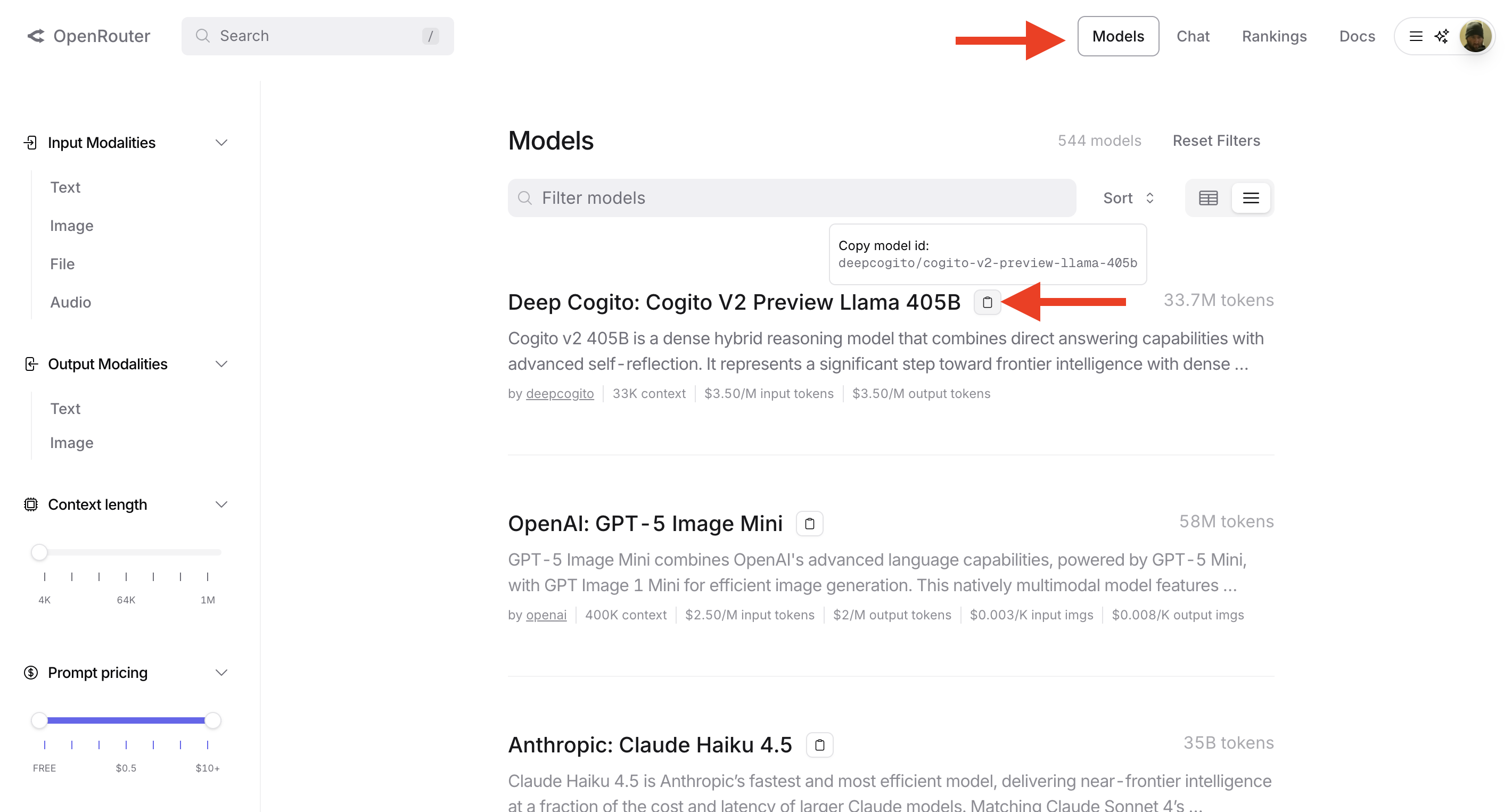
- Copy the model's ID (it looks like
provider/model-name) - In Dashtube.ai, click the Model Selector dropdown
- Select + Add Model at the bottom
- Paste the model ID into the prompt
- Click OK – your model is now saved and ready to use!
View Tabs
At the top right, you'll find three tabs:
- View README – See this documentation (you're reading it!)
- View Prompt – Edit and preview the active prompt
- View Payload – See the raw JSON data sent to the API
Clear All Data
The Clear All Data button at the bottom of the left panel deletes all 10 chat threads at once, including all messages, prompts, and settings. Use with caution!
Tips & Tricks
- Organize your chats: Use descriptive names like "Debug Session" or "Brainstorm Ideas"
- Save your prompts: Keep useful prompts in
.mdfiles for quick loading - Check your payload: If messages aren't working, click "View Payload" to see what's being sent
- Export frequently: Back up important conversations before they get too long
Troubleshooting
API calls aren't working:
- Make sure your API key is set correctly
- Check that your OpenRouter account has credits
- Verify you have internet connection
Chat slots aren't saving:
- Make sure you're not in incognito/private browsing mode
- Check if your browser allows local storage
JSON file won't load:
- Ensure the file is valid JSON (use a validator like jsonlint.com)
- Make sure the file extension is
.json
About Dashtube.ai
Dashtube.ai is a browser-based chat client built for power users who need:
- Multiple parallel conversations
- Custom system prompts
- JSON data integration
- Full conversation exports
Built with vanilla HTML, CSS, and JavaScript. No frameworks, no bloat.
Enjoy chatting! 🚀